Custom Outputs
Custom Outputs let you create new outputs on a Wrk Action with names that give those values clear context. Downstream Wrk Actions can then bind those names from the Data Library instead of working with a raw response or a generic output label.
Use Custom Outputs when you want readable names such as firstname, lastname, or occupation while you configure later steps in the Wrkflow Designer. Each field can be associated with the Wrk Action output that contains its value. Text (short) and Text (long) fields can also use a JSONPath expression to extract a specific value from that output.
How Custom Outputs work
Custom Outputs map a named field to a source output from the same Wrk Action. For Text (short) and Text (long) fields, the JSONPath expression tells Wrk which value to extract from that source output. A top-level value uses a path such as $.name; a nested value can use a path such as $.user.contact.email.
For example, if a Wrk Action returns {"user":{"contact":{"email":"charlie@example.com"}}}, create a Custom Output named UserEmail, select the output containing that JSON, and enter $.user.contact.email. The resulting UserEmail value is available to downstream Wrk Actions through the Data Library.
When the output is already a simple value, associate the Custom Output with that output without adding a JSONPath expression. This gives the value a clearer name for downstream steps.
Custom Output names are Data Library items. If two Wrk Actions define the same name (for example, firstname), they write to the same variable, so the later step overwrites the earlier value. That is useful for branching pathways that rejoin, and risky when the shared name is accidental. See Same-name items share one variable.
For JSONPath syntax, examples, and JSONPath NG extension functions, see Working with JSONPath.
Open Custom Outputs
- Open your Wrkflow in the Wrkflow Designer.
- Click a Wrk Action card to open its configuration panel.
- Scroll to the Custom Outputs section.
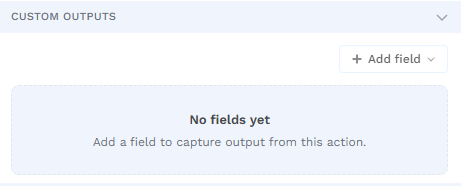
Add a Custom Output field
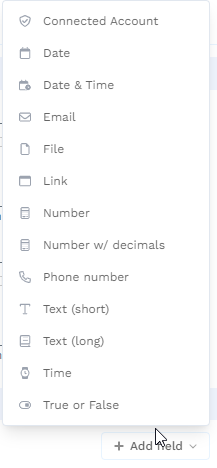
Select + Add field, then choose the data type that matches the value you expect.
After you add fields, they appear in the Custom Outputs list. You can reorder them with the up and down controls or remove a field with the trash icon.
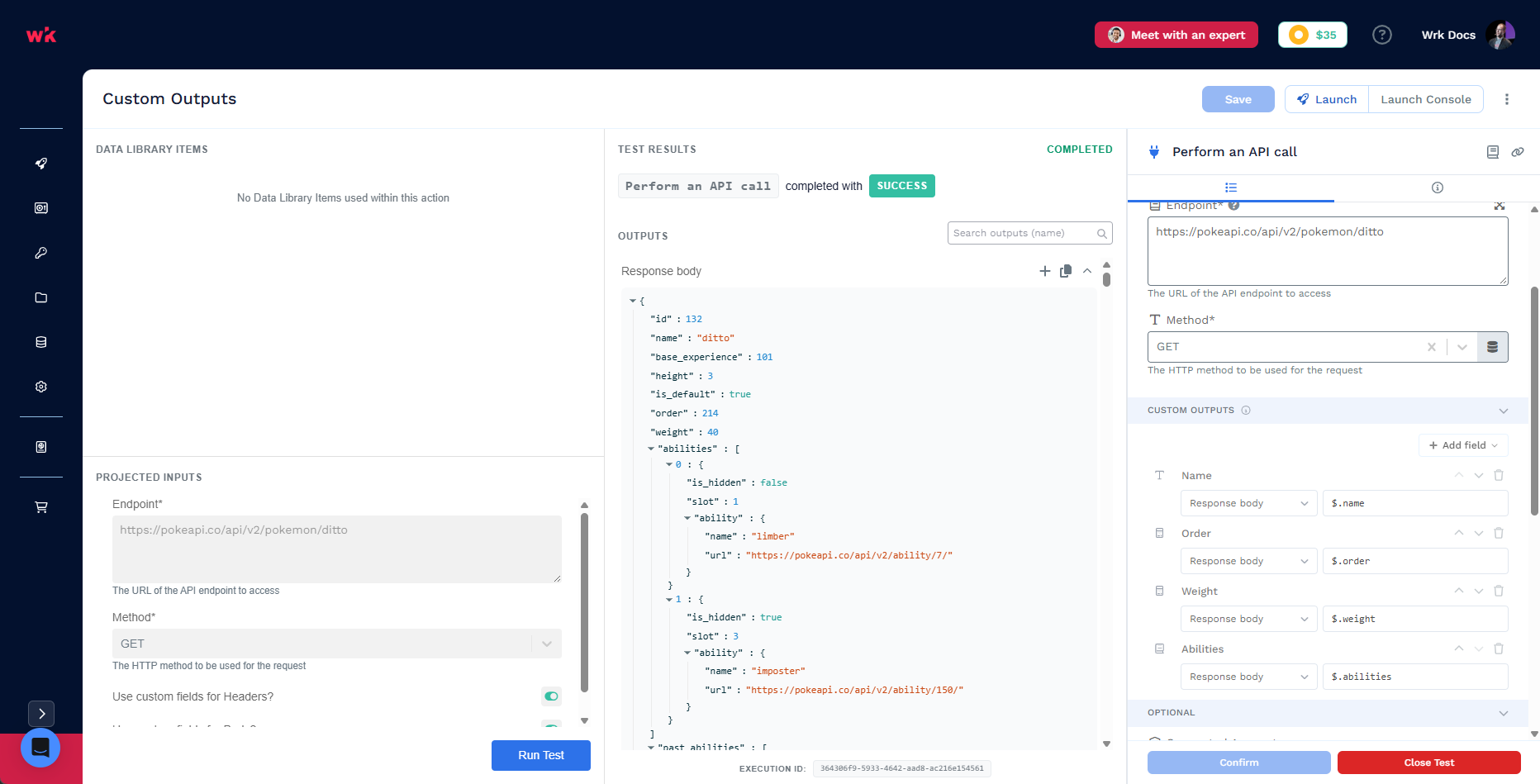
Create Custom Outputs from test results
Use Wrk Action Testing to populate the output you want to extract before configuring fields.
- Run a test on the Wrk Action.
- Expand the JSON output in Test Results.
- Double-click a field to create a Custom Output for that value.
- Select the + control beside the output to create Custom Outputs for all available fields at once.
- Review the generated field name, source output, and JSONPath in the Custom Outputs section. Edit any of them when the generated name or path is not appropriate.
The generated paths use standard JSONPath syntax. For example, a field named name from the Response body output can be represented as $.name, while an array or nested value can use the corresponding expression from the Working with JSONPath guide.
Use Custom Outputs downstream
Each Custom Output appears as a Data Library item from that step. Bind those items into inputs on later Wrk Actions the same way you bind any other output.
To verify extracted or aliased values before you launch the full Wrkflow, use Wrk Action Testing. Run a test on the step, then check that each Custom Output shows the value you expect.
When to use Custom Outputs
Use Custom Outputs when you want to:
- Extract top-level or nested values from a JSON output that the Wrk Action already produces
- Create several named outputs quickly from a tested JSON response
- Give a plain output a high-context name that is easier to bind and review downstream
- Use JSONPath NG expressions without adding another Wrk Action for basic transformation or selection
Use Working with JSONPath when you need JSONPath syntax or capabilities without adding another Wrk Action for basic extraction or transformation.
Related resources
- Wrkflow Designer: open the Wrk Action configuration panel
- Data Library Items: bind Custom Outputs into later steps
- Wrk Action Testing: confirm Custom Output values on a single step
- Working with JSONPath: JSONPath syntax, filtering, functions, and examples
- Working with JSON: choose between JSONPath, array division, and JSON SQL patterns
- JSON array loops: key settings: extract fields while looping a JSON array