Wrk Action Testing
Wrk Action Testing lets you run a single Wrk Action in isolation from the Wrkflow Designer. Use it to validate configuration, check outputs, and troubleshoot a step without starting a full Launch.
You can test any Wrk Action on the platform. Open the Wrk Action on the canvas, select Test, configure inputs in the testing panel, and select Run Test to execute the step and review the results.
Open the testing panel
From the Wrkflow Designer, click a Wrk Action card to open its configuration panel. Select Test at the bottom of the panel to open the Wrk Action Testing view.
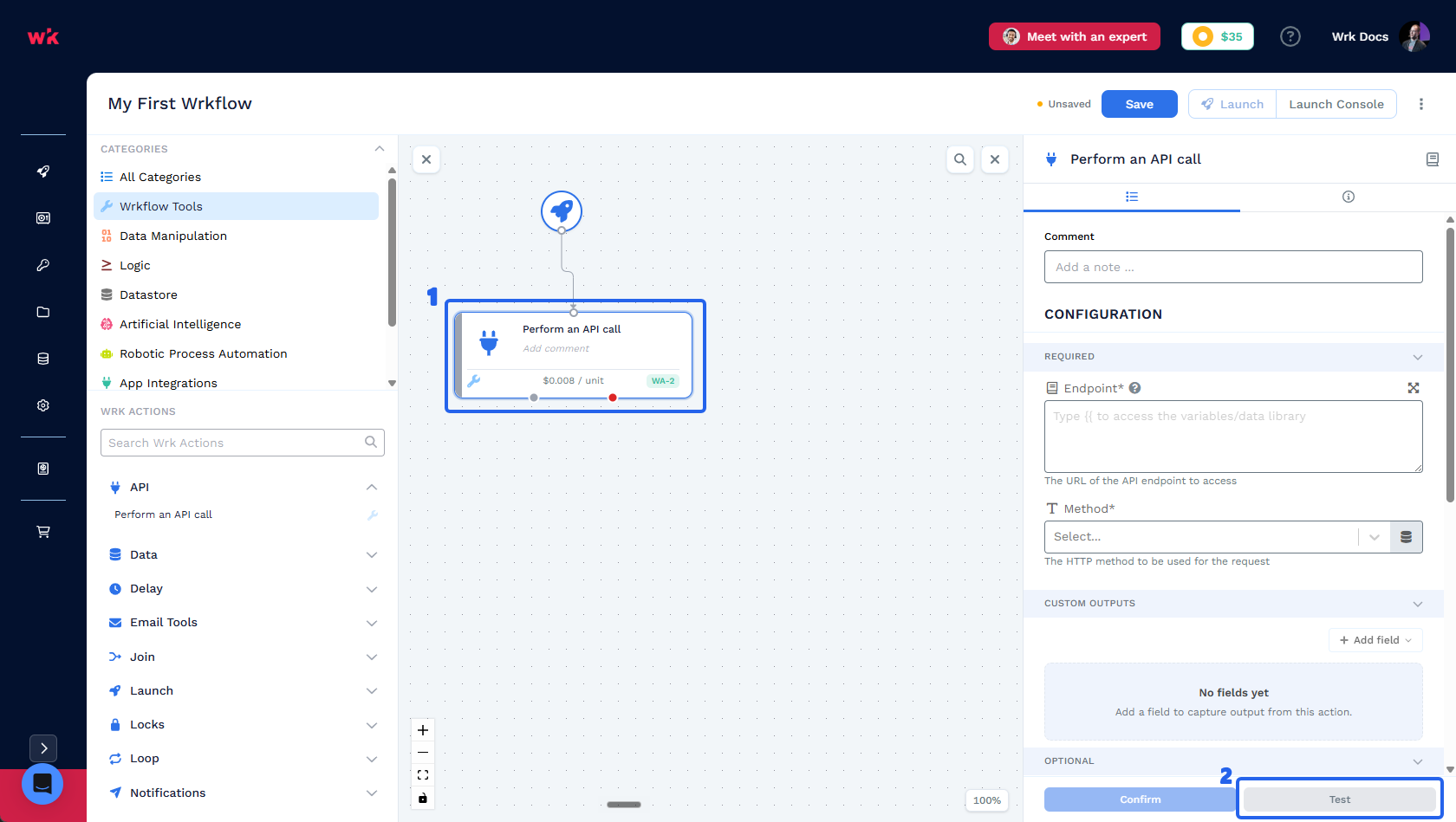
Select Test to open the testing panel. Confirm saves configuration changes first if you edited fields on this tab. Tests will execute with unconfirmed changes allowing you to quickly try different inputs without changing your saved Wrk Action configuration.
The testing panel layout
The testing panel replaces the canvas with three columns: Data Library Items and Projected Inputs on the left, Test Results in the center, and the Wrk Action configuration panel on the right.
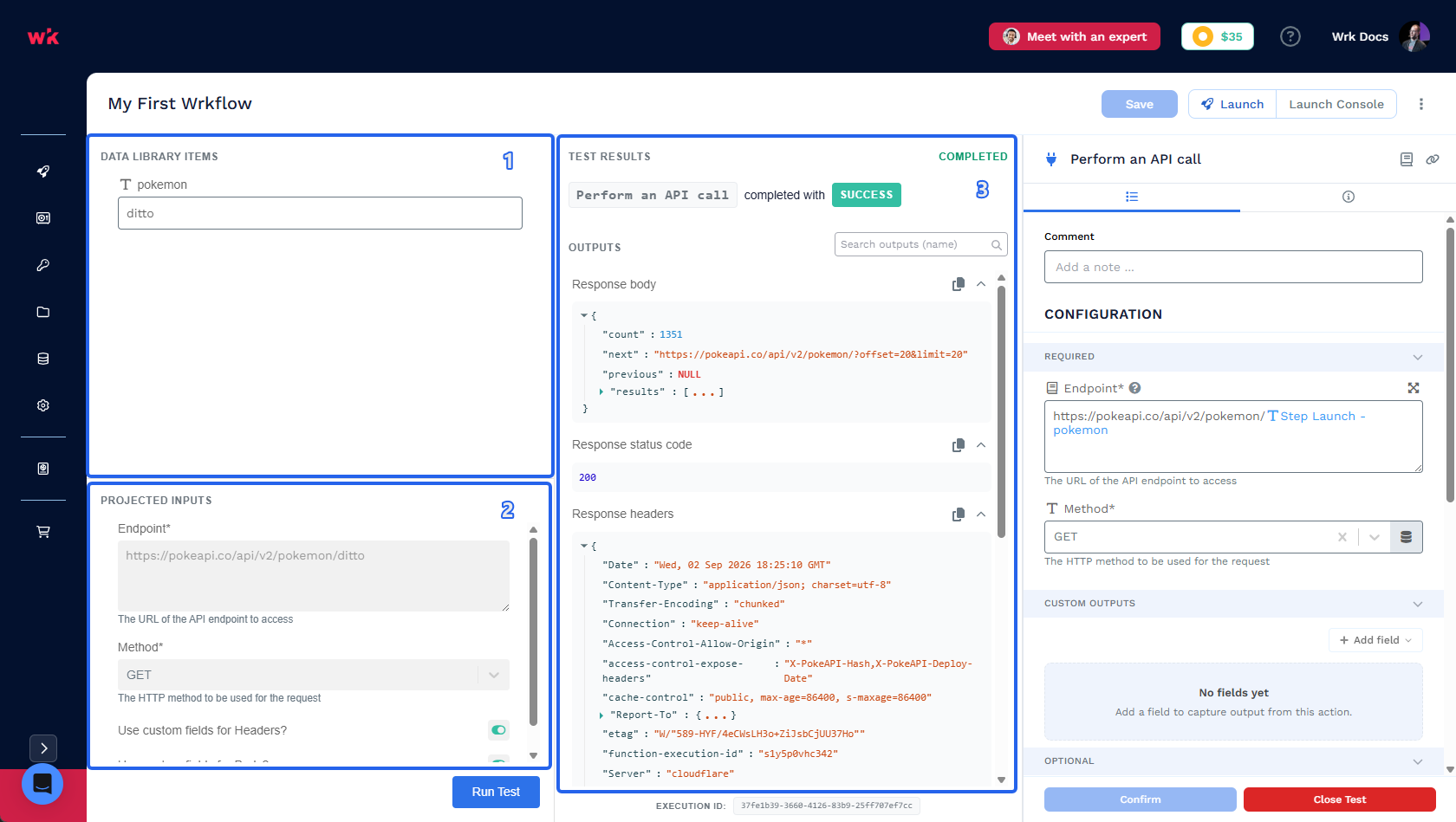
| # | UI element | What it does |
|---|---|---|
| 1 | Data Library Items | Enter test values for referenced Data Library items. |
| 2 | Projected Inputs | Shows the resolved payload that will be submitted. |
| 3 | Test Results | Displays status, outputs, and the execution ID after you run a test. Empty until the first run. |
Select Run Test at the bottom of the inputs column when you are ready to execute the step. Keyboard shortcut: Ctrl+Enter (Windows) or ⌘+Enter (macOS).
Configure test values
In Data Library Items, enter values for each referenced Data Library Item. These stand in for launch inputs or outputs from earlier Wrk Actions during the test.
When you run a test with values, those values and the Wrk Action outputs are saved for the next time you open the testing panel for that Wrk Action. You do not need to re-enter the same test data every time.
Projected Inputs below shows the final payload sent to the Wrk Action—the merged result of:
- Values you entered in Data Library Items
- Static text and bindings in the Wrk Action configuration panel
Review test results
After the test completes, Test Results shows the Wrk Action name, the outcome, and the outputs the step produced.
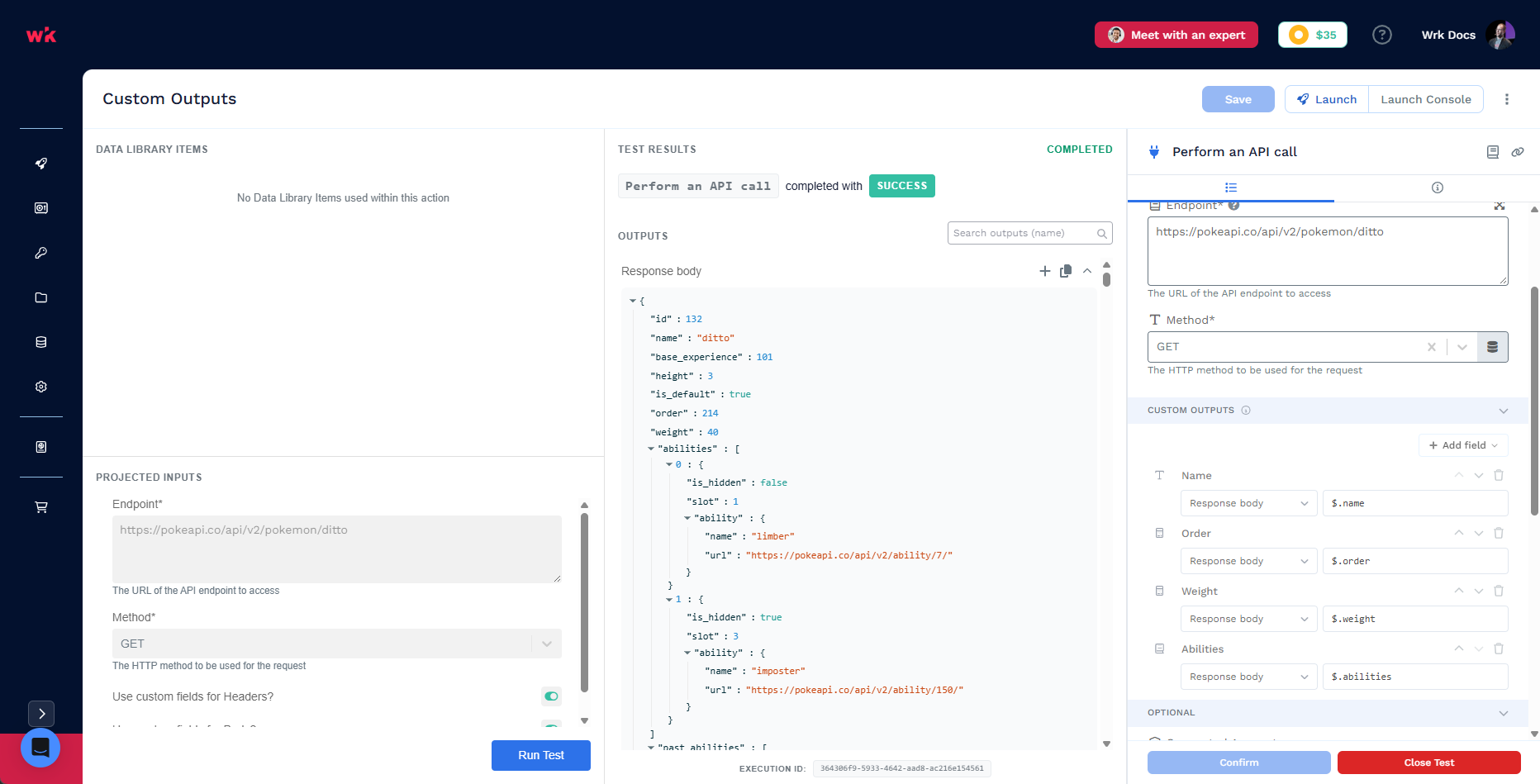
You can copy an entire output or an individual field from a JSON result using the copy controls beside each value.
When to use Wrk Action Testing
Use Wrk Action Testing when you want to:
- Verify a Wrk Action is configured correctly before you connect it to downstream steps
- Inspect output shape and field names for Data Library bindings
- Debug a failing step without running the entire Wrkflow
- Iterate on Custom Outputs and confirm extracted values
For testing the full Wrkflow end to end, use Launch from the Designer or see Launch Console. To inspect inputs and outputs during a Launch, use Launch Console and the Debug Console.
Related resources
- Wrkflow Designer — open the testing panel from a Wrk Action configuration
- Data Library Items — bind outputs from other steps into Wrk Action inputs
- Custom Outputs — extract specific values from Wrk Action outputs
- Wrk Action Testing video walkthrough
- Debug Console — inspect inputs and outputs during test Launches