Connected Accounts
Open Connected Accounts from the platform sidebar (vault icon) to securely link external applications and store credentials that Wrk Actions can use at runtime.

A Connected Account is your way to connect to an application and add the credentials Wrk needs to authenticate on your behalf. When you configure a Wrk Action that calls an external service, you pick a Connected Account instead of entering secrets directly in the Wrkflow. Wrk stores the credentials securely and handles authentication when the Wrk Action runs.
For how Connected Accounts relate to Connectors, see Connector and Connected Account. For the glossary definition, see Connected Account in the Glossary.
What a Connected Account stores
Each Connected Account has two parts: a nickname and connection information.
The nickname is the label you see when you review Connected Accounts later, before opening any credential details. Pick something that identifies the application, environment, and user or purpose so your team can select the right account when configuring Wrk Actions. For example, Wrk - John - Prod tells you the app (Wrk), the person (John), and the environment (production). Use a consistent pattern across your organization so accounts stay easy to scan in lists and dropdowns.
Connection information is the credentials or OAuth authorization required for that application and connection method. Wrk encrypts and stores this data. You do not paste API keys or passwords into individual Wrk Actions. When a Wrk Action runs, Wrk applies the stored credentials automatically.
Add a Connected Account
From the Connected Accounts screen, choose Add Connected Account (or Connect account). The flow has three steps.
Select an application
Search or scroll through the application library, then select the app you want to connect. The list shows how many connection methods each application supports.
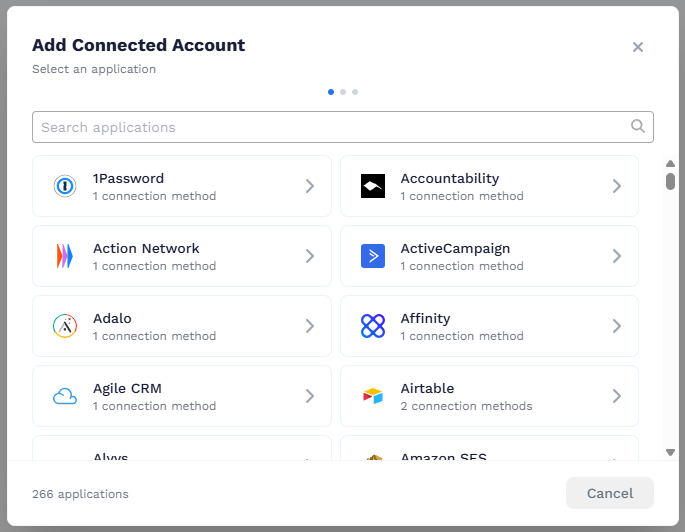
Pick a connection method
After you select an application, Wrk shows every connection type supported for that app. An application can expose more than one method because vendors offer different ways to authenticate. For example, you might see OAuth2 alongside an API key option, or several API-key variants such as header, query, or body authentication.
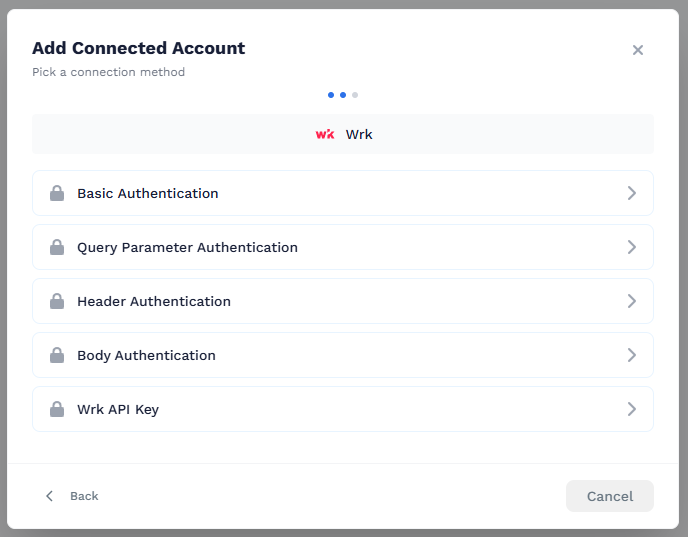
Set up the connection
On the final step, enter a Nickname and the fields required for the connection method you chose. Required fields vary by method: an API key, OAuth sign-in, username and password, or other app-specific values. Helper text and links on the form point to where you can create or copy credentials in the external application.
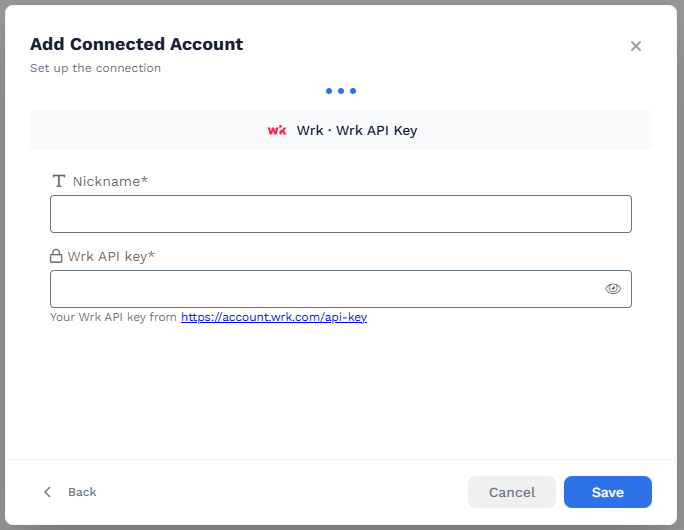
Select Save when the form is complete. Wrk validates the connection and adds the account to your list.
The Connected Accounts screen
The main screen lists Connected Accounts grouped by application. Select a row to open the detail panel on the right, where you can review status, connection type, and when the account was created or last updated.
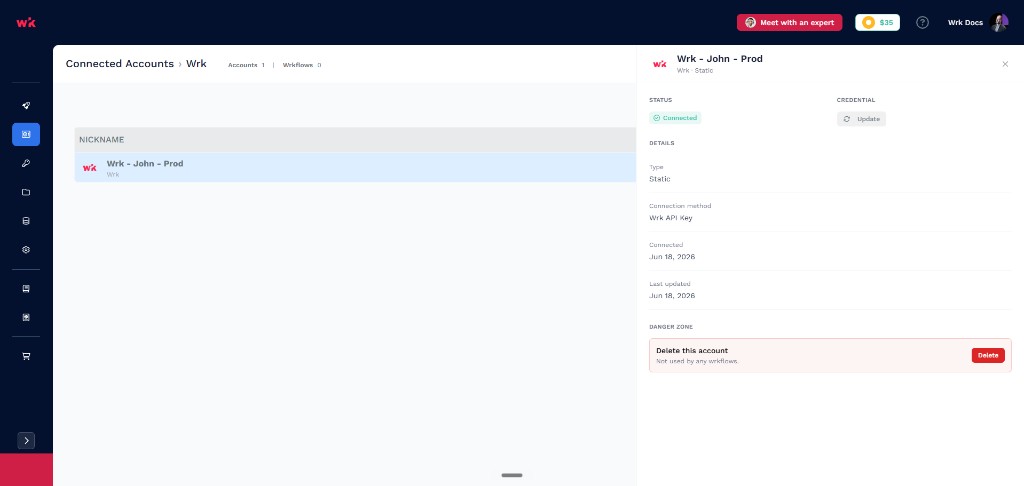
From this panel you can update stored credentials or delete the account when you no longer need it. The sections below walk through each option.
Update credentials
Open an account and choose Update under Credential when a password rotates, an API key expires, or OAuth access needs to be refreshed. Enter the new values and save. The nickname and Wrkflow references stay the same, so you do not need to reconfigure Wrk Actions that already point to this account.
Delete a Connected Account
Open an account and use Delete in the Danger zone when you no longer need the connection.
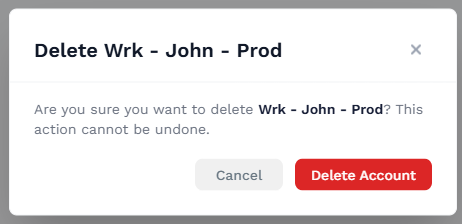
Delete an unused account
If no Wrkflow references the account, Wrk asks you to confirm deletion. This cannot be undone.
Delete when a Wrkflow uses the account
If one or more Wrkflows still reference the account, Wrk shows which Wrkflows are affected and gives you two options:
- Replacement account: Choose another Connected Account of the same type so referencing Wrkflows keep working.
- Clear references and delete: Type
CONFIRMto remove the account and clear references from affected Wrkflows.
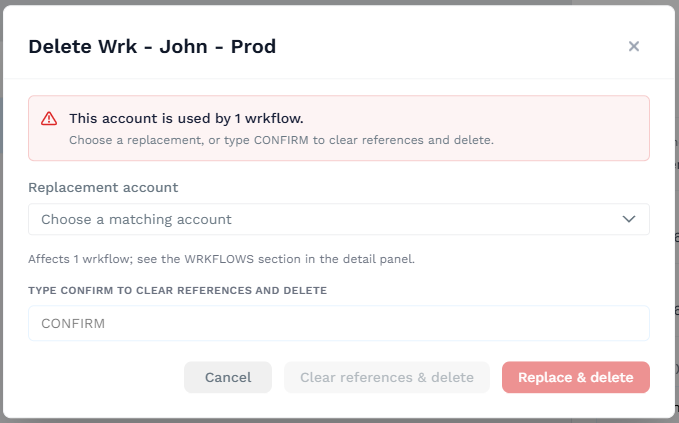
Review the Wrkflows section in the detail panel before deleting an account that is in active use.
Related resources
- Core concepts: Connector and Connected Account
- Connect to apps: setup guides for apps that need extra configuration
- Integrations reference
- Choosing a Wrk Action: App Integrations