Datastore
Open Datastore from the platform sidebar (database icon) to store and manage long-term information in your Wrk account.

Datastore gives your team account-level storage that persists across Launches. Unlike data that flows through a single launch, values in Datastore remain available until you change or delete them. Use it when multiple Wrkflows need the same configuration, when you want a shared queue of work items, or when you need structured records for reporting and logging.
Datastore has three features:
- Environment variables: single named values (text, numbers, or URLs) you reuse across Wrkflows
- Tables: structured rows and columns you create, query, and update from the UI or Wrk Actions
- Queues: work-item queues with status tracking, priority ordering, and atomic retrieval for producer/consumer Wrkflows
The best way to work with Datastore from automation is through Datastore Wrk Actions. The sections below cover what each feature stores and how to work with it.
Environment variables
Environment variables hold one named value that any Wrk Action or Wrkflow in your account can read. They are useful for configuration that might change over time: update the value once in Datastore and every Wrk Action that retrieves it picks up the new value on the next run, without editing each Wrkflow separately.
A variable can store text, numbers, URLs, booleans, dates, email addresses, or structured values such as JSON arrays. Typical uses include:
- API endpoint URLs when you move between test and production environments
- Shared identifiers, thresholds, or feature flags
- Notification template IDs, alert recipient lists, or dashboard links your Wrkflows call repeatedly
For example, store your test and production API base URLs as environment variables. When you promote a Wrkflow, update the variable once in Datastore instead of hunting through multiple Wrk Actions for hard-coded links.
Open the Environment variables tab in Datastore to create and manage variables.
The Environment Variables screen
The main Environment variables screen lists every variable in your account. Search by name, review each value, and see when variables were created or last updated.
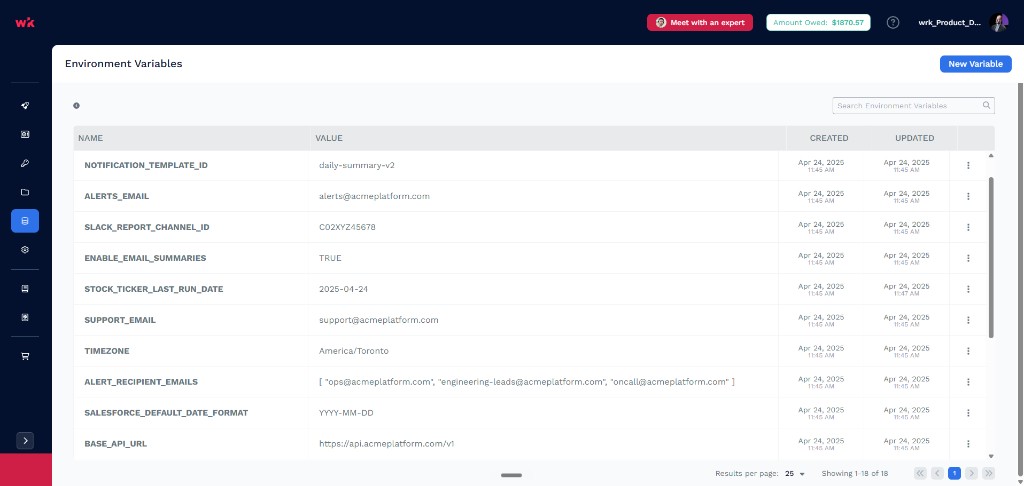
| UI element | What it tells you |
|---|---|
| New Variable | Opens the dialog to create a new environment variable |
| Search | Filters the list by variable name |
| Name | The variable identifier Wrk Actions use to retrieve the value (for example, BASE_API_URL) |
| Value | The stored data: text, numbers, URLs, booleans, dates, or JSON arrays |
| Created | When the variable was first added to your account |
| Updated | When the value or metadata was last changed |
| Row menu | Delete the selected variable. Edit a value by clicking the cell directly |
Because environment variables are account-level, the same name is available to every Wrkflow in your account. Any Wrk Action configured to retrieve BASE_API_URL gets the current value, whether that Wrk Action runs in one Wrkflow or ten.
At runtime, use Datastore Wrk Actions to create, retrieve, and update environment variables from a Wrkflow.
Tables
Tables store structured information as rows with named columns. You define a table schema, then add, query, update, and delete rows from the Datastore UI or from Wrk Actions during a Launch.
Typical uses include:
- Mapping documents: lookup tables that translate codes, SKUs, or region names into the values downstream Wrk Actions need
- Reporting and logging: append rows that capture outcomes, timestamps, or audit details across many launches
- Simple shared lists: data you want to view and edit directly in the Datastore UI
For work-item processing with locking, priority, and status lifecycle, use Datastore Queues instead of building a queue from table rows.
Open the Tables tab in Datastore to create and manage tables.
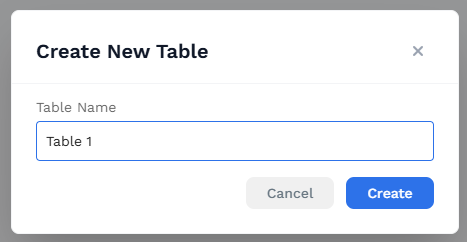
Create a table
Select New Table in the top right. Enter a Table Name and select Create. Wrk opens the new table so you can add columns and rows.
The Tables screen
The main Tables screen lists every table in your account. Search by name, review when each table was last updated, and see how many rows it contains.
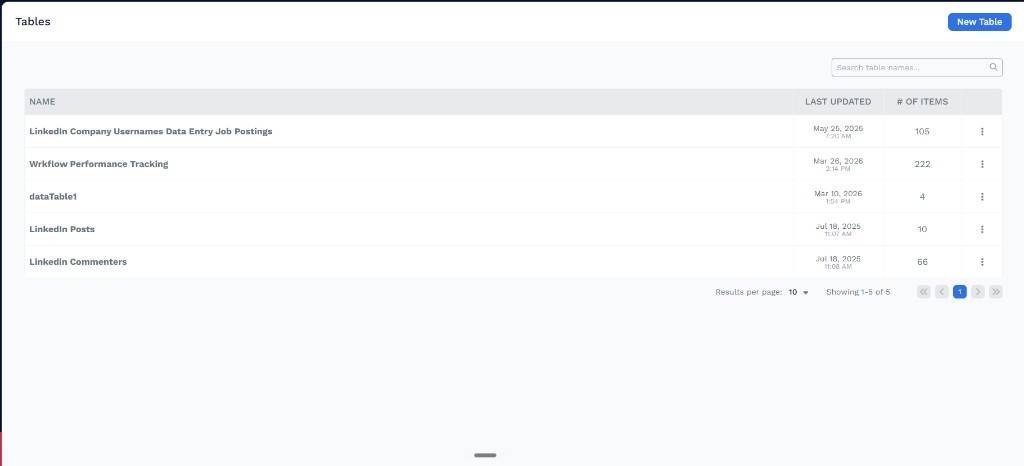
| UI element | What it tells you |
|---|---|
| New Table | Opens the dialog to create a new table |
| Search | Filters the list by table name |
| Name | The table name; select a row to open that table |
| Last updated | When any row or schema in the table was last changed |
| # of items | How many rows the table currently holds |
| Row menu | Actions for the selected table: Edit, Import, and Delete |
Work inside a table
Select a table to open its detail view. A sidebar on the left lists your tables for quick switching. The main area shows rows and columns in a spreadsheet-style grid.
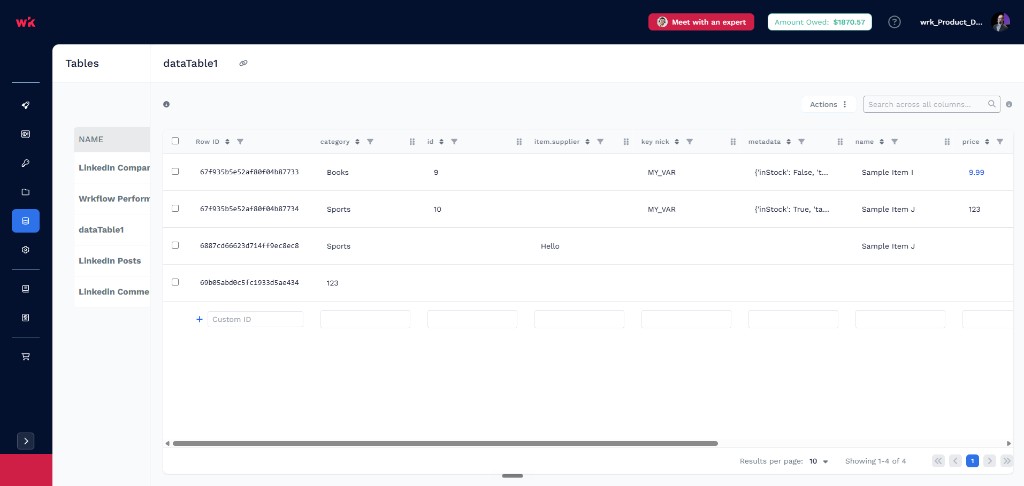
| UI element | What it tells you |
|---|---|
| Table list (sidebar) | Switch between tables without returning to the main Tables screen |
| Copy link | Copies a URL to this table view, including saved search, filter, and sort options |
| Search across all columns | Finds matching text anywhere in the table |
| Column sort and filter | Sort or filter on a single column using the controls on each column header |
| Actions | Table-level operations such as adding columns or managing the table |
| Add row | Use the row at the bottom of the grid (or +) to enter a new record |
| Row selection | Select one or more rows to delete them |
| Row ID | Read-only identifier on the far left; optional custom value when you create a row |
| datastore created at | Read-only timestamp Wrk sets when a row is first created |
| datastore updated at | Read-only timestamp Wrk updates whenever a row changes |
Use Copy link when you want to share a filtered or sorted view with a teammate, or bookmark a saved report you return to often. The link restores the same query, filter, and sort options when opened.
Row ID is the primary key for each row. You can supply a custom ID when you create a row, or let Wrk generate one. Datastore Wrk Actions use Row ID to update or delete a specific record, and Query table in Datastore can return _id in the result set when you need it in a Wrkflow.
Add columns from the table toolbar when your schema grows. Edit cell values inline, add rows at the bottom of the grid, or delete selected rows. datastore created at and datastore updated at update automatically; you cannot edit them manually.
SQL query limits
The Query table Wrk Action can query up to a combined 200 MB and 200,000 rows across the referenced tables.
Queues
Queues let Wrkflows hand off work to each other. Use them when one Wrkflow needs to add items for another Wrkflow to process, when you want items processed one at a time in a set order, or when you need to track whether each item is waiting, in progress, complete, or failed.
Queues are account-level, like environment variables and tables. Any Wrkflow in your account can read from or write to the same queue. Unlike tables, queues are not edited in a Datastore UI grid. You manage them with Datastore queue Wrk Actions.
Typical uses include:
- Producer and consumer Wrkflows: one Wrkflow adds work items when new work arrives; another retrieves and processes them on a schedule or trigger
- Ordered processing: pick up the next eligible item by priority (lower numbers first), then creation time
- Status tracking: monitor items as Pending, In progress, Complete, or Exception without building that lifecycle yourself in a table
- Retries and deferred work: mark failed items as Exception and retrieve them again later, or set Defer until (UTC) so an item is not picked up before a given time
How queue items work
Each queue is identified by a Queue name you provide (for example, Orders or Lead enrichment). When you Add item to queue, you can enable Auto-create queue? (default: true) so the queue is created automatically on first use.
Every queue item has a consistent set of fields, including:
| Field | Description |
|---|---|
| Queue Item ID | Unique identifier. Use it with Update queue item and Delete queue item. |
| Status | Lifecycle status: Pending, In progress, Complete, or Exception. |
| Data | JSON payload for the work item. Store whatever your Wrkflow needs to process the item. |
| Tags | Text tags for filtering and routing. |
| Priority | Processing order. Lower numbers are processed first. Default is 0. |
Typical flow:
- Add item to queue creates an item with status Pending.
- Retrieve next queue item picks up the next eligible item and sets its status to In progress. Only one Launch can pick up a given item at a time.
- Your Wrkflow processes the item.
- Update queue item marks the item Complete or Exception, or resets it to Pending if you want to try again.
Five Datastore queue Wrk Actions cover the full lifecycle: Add item to queue, Retrieve next queue item, Update queue item, Delete queue item, and Search queue items.
For field details, retrieval rules, data input modes, and common patterns, see Datastore Queues.
Queues vs tables
Both queues and tables live in Datastore and persist across Launches, but they serve different purposes:
| Queues | Tables | |
|---|---|---|
| Best for | Handing off work between Wrkflows with built-in status tracking | Structured records, lookups, logging, UI-visible data |
| Retrieval | Pick up the next item in priority order | Query or retrieve by ID or filters |
| Status tracking | Built-in pending, in progress, complete, and exception | You define columns yourself |
| UI | Managed through Wrk Actions | Editable grid in the Datastore Tables tab |
If you need a simple shared list you edit manually in the UI, use a Table. If you need one Wrkflow to pass work to another with status tracking, use a Queue.
Use Datastore in Wrkflows
Datastore is not only a storage screen in the platform. Datastore Wrk Actions let a running Wrkflow read and write environment variables, table rows, and queue items as part of your automation. This is the recommended way to hand off work between Wrkflows, update mapping tables, rotate configuration values, and log results at scale.
| Operation | Environment variables | Tables | Queues |
|---|---|---|---|
| Create | Create environment variable | Create row, Import data | Add item |
| Read | Retrieve environment variable | Retrieve rows, Query table | Retrieve next item, Search items |
| Update | Update environment variable | Update row | Update item |
| Delete | Manage in the Datastore UI | Delete row, Delete all rows | Delete item |
See Datastore Queues for how queue actions work together.
When a Wrk Action retrieves a value, map outputs with Custom Outputs so later steps in the same Wrkflow can use the data.
For the full list of Datastore Wrk Actions, see the Tables, Queues, and Environment Variables references.