Media Library
Open Media Library from the platform sidebar (folder icon) to upload static files to your Wrk account and reuse them across Wrkflows.

The Media Library is a central place to store files you need repeatedly: images for Vision RPA, Excel mapping documents, sample invoices for document-processing tests, or any other document your team references during design and testing. Once a file is uploaded, you can select it when configuring Wrk Actions or when setting launch parameters for a Wrkflow.
What the Media Library stores
Each entry in the Media Library is a named file with optional description text. The name is the label you see when picking a file elsewhere in the platform, so choose something specific enough to distinguish it from other uploads in your account. Use the description for longer notes that help teammates understand what the file is for, where it came from, or when to use it.
Files remain in your account until you delete them. They are not tied to a single Wrkflow, which makes them useful for shared test assets and reference documents.
Add a file
From the Media Library screen, select Add File. The upload dialog lets you add a file in three ways: click to browse your file system, drag and drop, or paste from the clipboard.
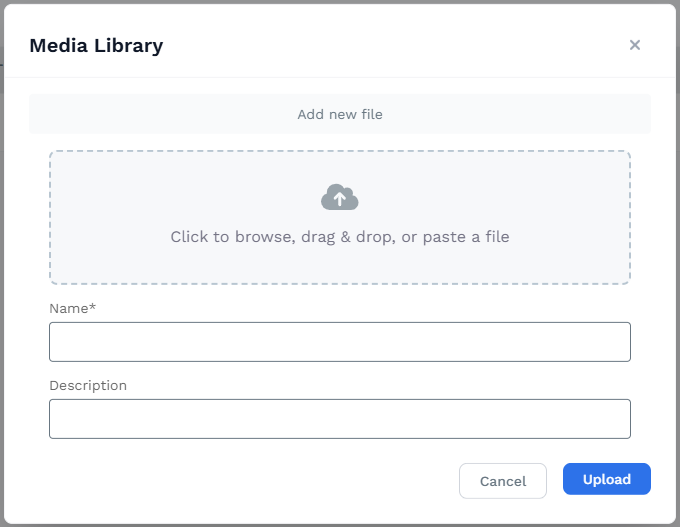
Enter a Name (required) and an optional Description, then select Upload. Wrk stores the file and lists it on the main Media Library screen.
The Media Library screen
The main screen lists every file in your account. Search and filter to find a file quickly, or select Add File to upload another.
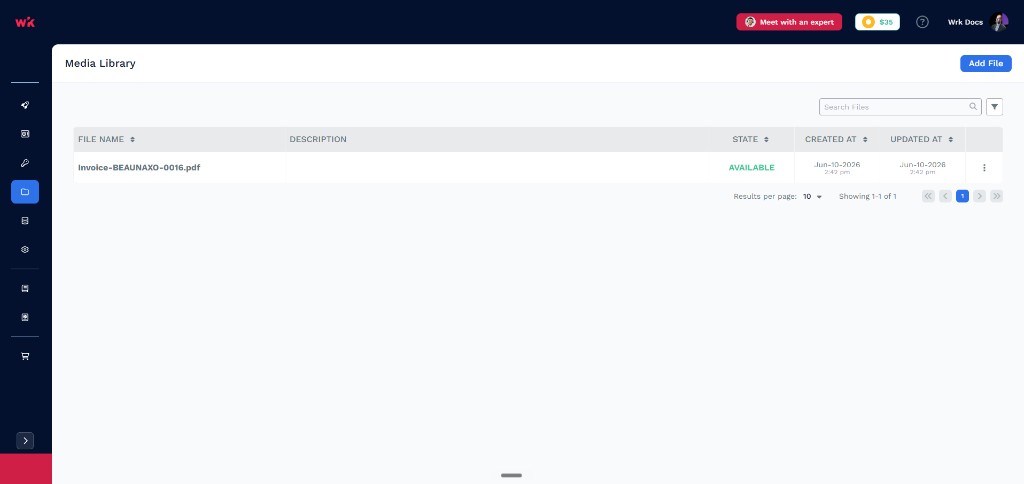
| UI element | What it tells you |
|---|---|
| Add File | Opens the upload dialog to add a new file |
| Search | Filters the list by file name or other visible metadata |
| File name | The name you assigned at upload; select it to open or preview the file |
| Description | Optional notes you added when uploading or updating the file |
| State | Whether the file is ready to use (for example, AVAILABLE) |
| Created at | When the file was first uploaded |
| Updated at | When the file or its metadata was last changed |
| Row menu | Actions for the selected file: view, update, or delete |
Manage files
Open the row menu (three dots) on any file to View, Update, or Delete it.
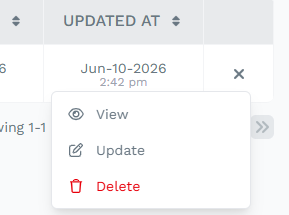
- View opens the file so you can confirm it is the correct asset before using it in a Wrkflow.
- Update replaces the file or edits its name and description without changing how Wrkflows reference it.
- Delete removes the file from your account. Confirm before deleting files that active Wrkflows or launch configurations still reference.
Use Media Library files in Wrkflows
After you upload a file, you can reference it in two common ways:
- Wrk Action configuration: When a Wrk Action accepts a file input (for example, an image for Vision RPA or a document for processing), pick a Media Library file instead of supplying a one-off upload each time you test.
- Launch parameters: When a Wrkflow defines file-type launch inputs, select a Media Library file as the default or test value so every launch uses the same known asset.
For how launch inputs connect to Wrk Actions, see Launch Configuration and Data Library Items.