Manual Launch
A manual launch is a Launch you start yourself from the platform UI, rather than waiting for an email, schedule, webhook, or API call. You provide the launch inputs, optionally name the Launch and set its timing and priority, and the Wrkflow starts right away.
Manual launches are the fastest way to test a Wrkflow you are building, re-run a process on demand, or handle a one-off request.
Launch from Wrkflow Automation
On the Wrkflow Automation screen, find your Wrkflow in the list and select the rocket icon under Launch Control on the right-hand side of the row.
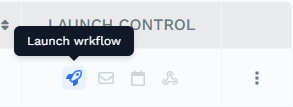
This opens the Launch Control panel with Manual Launch selected.
Provide launch inputs
The first tab of Launch Control lists the data and files defined in your Wrkflow's Launch Configuration. Required fields must be filled in before the Wrkflow can start; optional fields can be left blank.
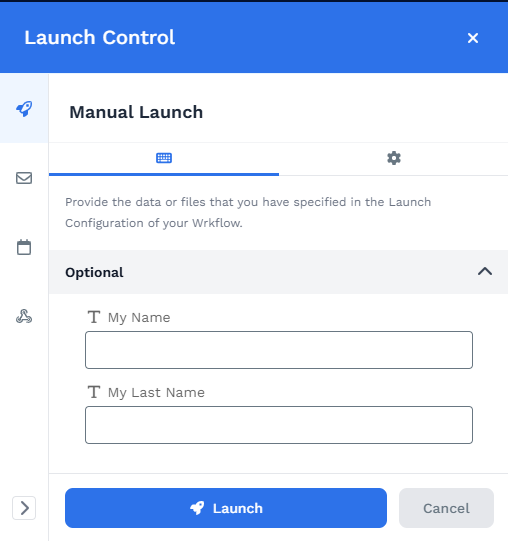
The values you enter here become available to downstream Wrk Actions through the Data Library. If no fields appear, the Wrkflow has no launch inputs configured.
Set the Launch name, timing, and priority
The second tab (the gear icon) controls how this particular Launch is recorded and scheduled.
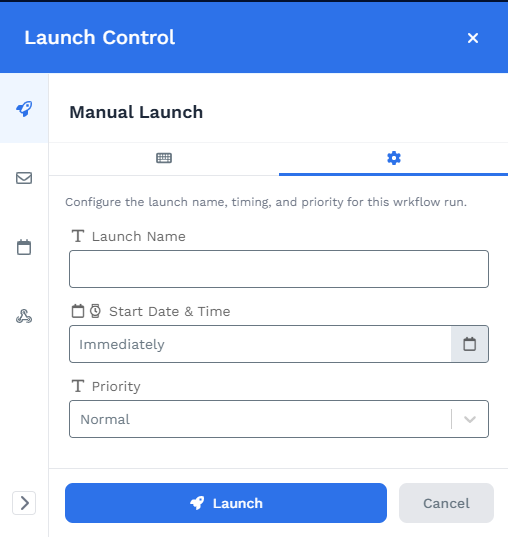
| UI element | What it does |
|---|---|
| Launch Name | Label for this Launch in the Launches table |
| Start Date & Time | When the Launch begins. Defaults to Immediately |
| Priority | Queue ordering. Defaults to Normal |
All three fields are optional. A manual launch defaults to starting immediately with the values you provided.
Launch and watch the results
Select Launch to start the Wrkflow. The Debug Console and Launch Console open so you can follow the Launch as it runs.
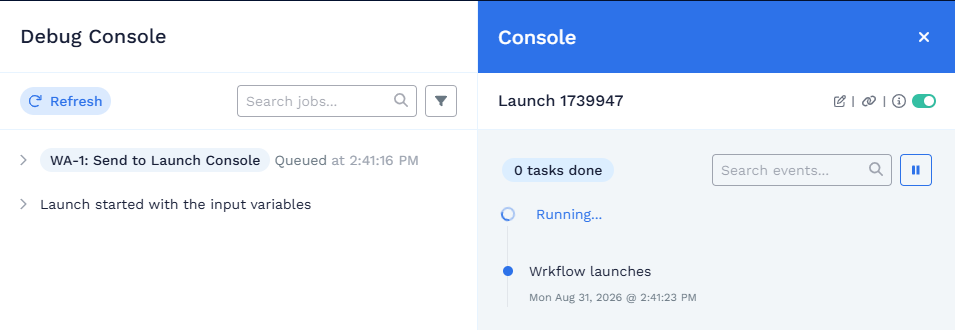
The Debug Console lists each Wrk Action as it is queued and executed, along with the input variables the Launch started with. The Launch Console shows the event timeline for the Launch, including any messages your Wrkflow sends to it.
Launch from the Wrkflow Designer
While you are building or editing a Wrkflow, you can start a manual launch without leaving the Wrkflow Designer. Select Launch in the top right corner, or press Ctrl+K.
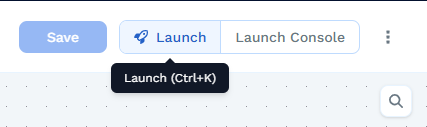
This opens the same Launch Control panel, with the same launch inputs and the same Launch name, timing, and priority settings. Save your changes first so the Launch uses the latest version of the Wrkflow.