Schedule Launch
A schedule launch runs a Wrkflow automatically on a recurring schedule: every few minutes, hourly, daily, weekly on specific days, or monthly. You set the default launch parameters once, define the recurrence, and the platform starts a new Launch each time the schedule comes around.
Schedule launch suits any process that runs on a clock rather than in response to an event: a nightly data sync, a Monday morning report, or a check that runs every fifteen minutes.
A Wrkflow can have one scheduled launch at a time. Saving a new schedule replaces the existing one.
Open Schedule Launch
On the Wrkflow Automation screen, find your Wrkflow and select the calendar icon, the third option in the Launch Control column.
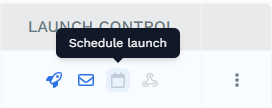
This opens the Launch Control panel with Schedule Launch selected.
Set default launch parameters
The first tab lists the data and files defined in your Wrkflow's Launch Configuration. Because nobody is present to fill in values when a scheduled Launch starts, whatever you enter here is used as the default for every Launch the schedule creates.
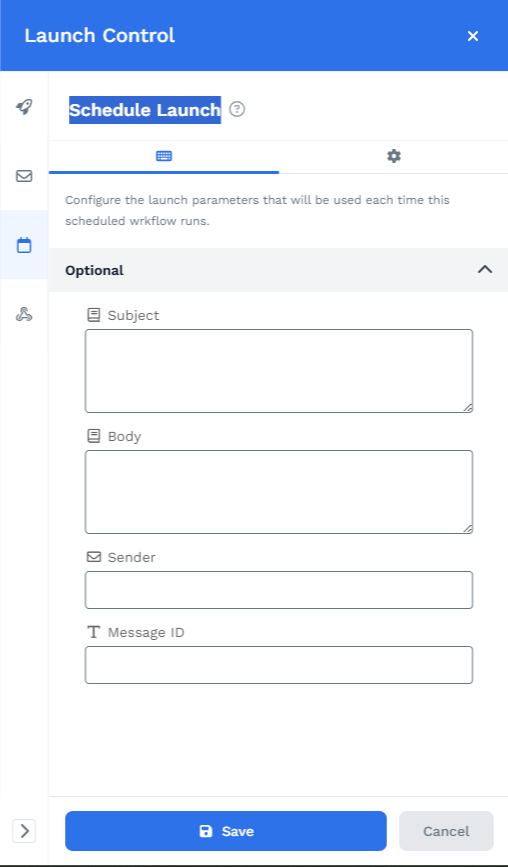
Fill in any required fields before saving. Optional fields can be left blank, and the values you do provide are available to downstream Wrk Actions through the Data Library.
If no fields appear, the Wrkflow has no launch inputs configured. Add them from the rocket node in the Wrkflow Designer and save the Wrkflow, then reopen this panel.
Configure the schedule
Switch to the second tab (the gear icon) to define when the Wrkflow runs.
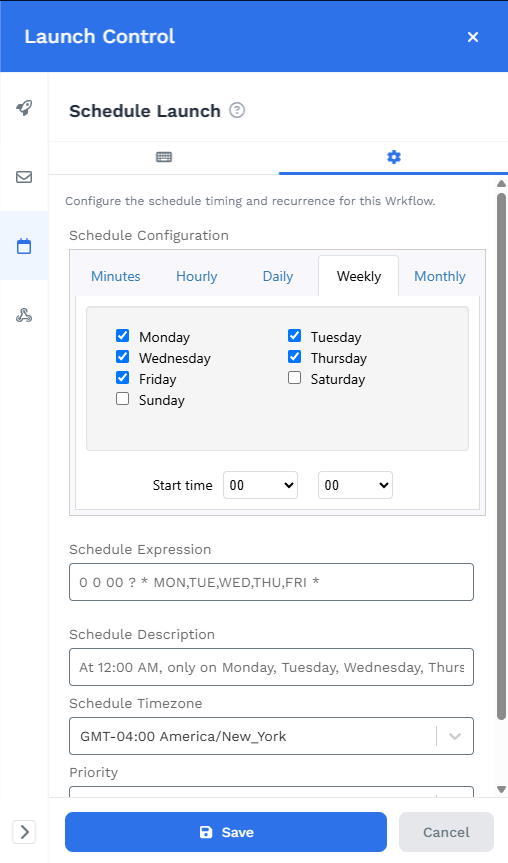
Schedule Configuration offers five recurrence types. Select one and fill in its options:
| Recurrence | What it does |
|---|---|
| Minutes | Runs every N minutes |
| Hourly | Runs every N hours |
| Daily | Runs once a day at a start time |
| Weekly | Runs on the days of the week you check, at a start time |
| Monthly | Runs on a chosen day of the month, at a start time |
The screenshot above shows a Wrkflow set to run on weekdays: Weekly with Monday through Friday checked. Set Start time to 09 and 00 to run at 9:00 AM. Where a Start time is not specified, the schedule defaults to 12:00 AM.
The remaining fields describe and scope the schedule:
| UI element | What it does |
|---|---|
| Schedule Expression | The cron expression the builder generates, for example 0 0 09 ? * MON,TUE,WED,THU,FRI * |
| Schedule Description | A plain-language summary of the expression, useful for confirming you got it right |
| Schedule Timezone | The timezone the start times are interpreted in |
| Priority | Queue ordering for the Launches this schedule creates |
Always check Schedule Timezone. It defaults to a single timezone regardless of where your team sits, so a 9:00 AM schedule may not mean 9:00 AM locally.
Use a custom cron expression
If the builder cannot express the timing you need, select Use Custom Expression. This disables the builder and lets you type a Quartz cron expression directly into Schedule Expression.
:::warning Wrk requires Quartz 7-field cron
Wrk accepts Quartz cron with seven fields: seconds, minutes, hours, day of month, month, day of week, and year. A weekday 9:00 AM schedule looks like 0 0 09 ? * MON,TUE,WED,THU,FRI *.
This is not the same as standard Unix cron, which most online cron tools generate by default. A five-field Unix expression such as 0 9 * * 1-5 will not work here.
:::
If you would rather not write one by hand, use cronpreview with the Quartz 7-field dialect preselected. That link opens the tool already set to Quartz (7-field with year), so the expression it produces is the format Wrk expects. Build your schedule, check the previewed run times, then copy the expression into Schedule Expression.
If you use a different cron tool, make sure it is set to Quartz 7-field before you copy anything in. After pasting, check Schedule Description to confirm the expression means what you expect.
Save and manage the schedule
Select Save. The schedule is live immediately, and the Wrkflow launches at the next matching time with the default parameters you provided.
Each scheduled Launch appears in the Launches table like any other Launch, and you can follow its progress in the Launch Console or Debug Console.
To change or stop the schedule, reopen Schedule Launch from Launch Control. Editing and saving replaces the existing schedule, since only one scheduled launch exists per Wrkflow.