Launch Console
The Launch Console is the activity log for a single Launch. It opens when you start a Launch and stays available from Wrkflow Automation so you can see what happened during that execution without opening every individual Wrk Action log.
Select a Wrkflow and launch to open the Launch Console in the panel on the right.
What the Launch Console shows
Each launch gets its own Launch Console. The timeline records:
- Wrkflow launch start when the Launch begins
- Billing information for the Launch, including launch ID, Wrkflow name, priority, transaction amount, and remaining credits
- Launch complete when the Launch finishes
- Custom events you log from the Wrkflow with the Send to Launch Console Wrk Action
Errors during execution also appear here by default. You do not need a separate Wrk Action to surface them.
Think of the Launch Console like console.log in JavaScript or print in Python: a single place to record progress, outcomes, and context while a Launch runs. It is useful for debugging during design and for maintenance on long-running or high-volume Wrkflows where stepping through every Wrk Action log would be slow.
How to open the Launch Console
The Launch Console opens automatically when you launch a Wrkflow from the Wrkflow Designer or from Launch Control.
You can also open it later from Wrkflow Automation:
- Select a Wrkflow.
- In the launch list, select the Launch you want to review.
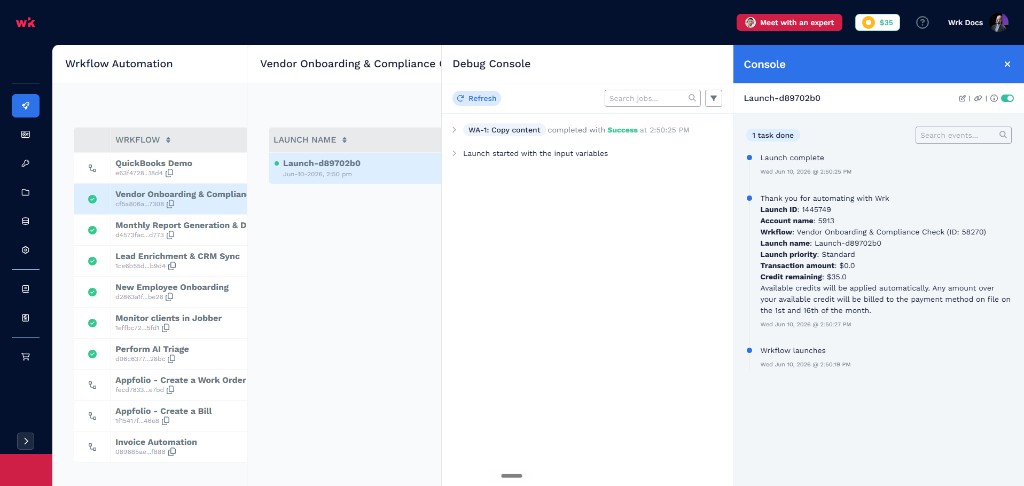
The Launch Console screen
The console is a panel on the right side of the launch view. Events appear in reverse chronological order on a timeline, with timestamps for each entry.
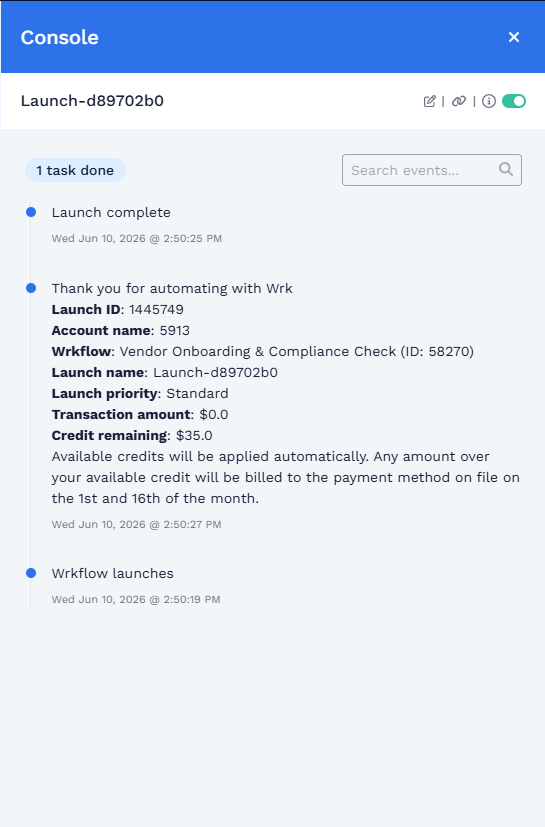
| UI element | What it tells you |
|---|---|
| Console title | Identifies the Launch Console panel |
| Launch name | Which launch this log belongs to (for example, Launch-d89702b0) |
| Task count badge | How many Wrk Action tasks have completed in this Launch |
| Search events | Filter the timeline by text |
| Event timeline | Chronological log of system and custom events for this Launch |
System events such as Wrkflow launches, the billing summary (Thank you for automating with Wrk), and Launch complete are added automatically. Custom messages from your Wrkflow appear in the same timeline.
Header controls
The header above the timeline provides quick actions for the launch and the Wrkflow.
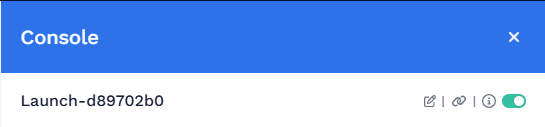
| UI element | What it tells you |
|---|---|
| Edit in designer | Open the Wrkflow in the Wrkflow Designer |
| Copy deep link | Copy a URL that opens this Launch and its Launch Console directly |
| Debug Mode toggle | Open or close the Debug Console drawer for per-Action inputs, outputs, and errors |
Use Copy deep link when you need to share a specific launch with a teammate or return to the same run later. Use Edit in designer when troubleshooting points to a design change.
Logging your own events
To add messages to the Launch Console from a Wrkflow, use the Send to Launch Console Wrk Action. Notification content can be plain text, Markdown, or HTML. You can also attach files and choose notification types (for example, log, warning, or question). That reference documents inputs, character limits, and configuration options.
For patterns on what to log and when, see Launch Console guidelines & best practices.