Wrkflows
Open Wrkflow Automation from the platform sidebar (rocket icon) to design, launch, and monitor your automations.

A Wrkflow is the largest building block of automation on Wrk: a designed process—or part of a larger process—that can run on its own. For the shared glossary definition, see Core concepts — Wrkflow.
What a Wrkflow represents
A Wrkflow is an automated process that runs independently once launched. It is the unit you design, version, launch, monitor, and improve—not a single step.
Each Wrkflow is made up of Wrk Actions connected in a specific logical order. A Trigger starts the run, and optional launch inputs supply data at run time.
See the Wrkflow execution flow diagram in Core concepts for the full picture.
How a Wrkflow starts
A Wrkflow can be launched and triggered in multiple ways—manual launch from the UI, email, schedule, webhook, or API. The trigger you choose defines how data first enters the Wrkflow and how often the process can begin.
See Triggers for each launch method and when to use it.
Launch inputs
Wrkflows can define launch inputs, similar to function parameters: values you provide each time the Wrkflow runs. Downstream Wrk Actions can reference these values through the Data Library.
Configure launch inputs in Launch Configuration (rocket icon in the Wrkflow designer). For setup steps, see:
- Launch Configuration (Building a Wrkflow)
- Launch Configuration (how-to)
- Glossary — Launch configuration
What is inside a Wrkflow
A Wrkflow is a collection of Wrk Actions built to run in a specific logical order—sequentially, in branches, or in loops.
With the same launch inputs and Wrk Action configuration, a Wrkflow follows the same path and should produce a predictable, deterministic outcome. For canvas layout, cards, and connections, see Wrkflow canvas.
Wrkflow outputs
A Wrkflow has no built-in output. There is no implicit return value from the Wrkflow itself.
If you need a result—a file, API response, Datastore row, or notification—you must create it with a Wrk Action. Use Fields to Capture and Data Library Items to pass Action outputs through the run.
Sub-Wrkflows
One Wrkflow can call another using the Launch a Wrkflow Wrk Action. Nest multiple Wrkflows this way to reuse processes or break large automations into modules.
The parent Wrkflow receives a Wrkflow launch ID from the child launch. See the Launch a Wrkflow reference for inputs, outputs, and configuration.
The Wrkflow Automation screen
The Wrkflow Automation screen is your home for all Wrkflows in the account. Use Create Wrkflow to start a new design, or search and filter the list to find an existing one.
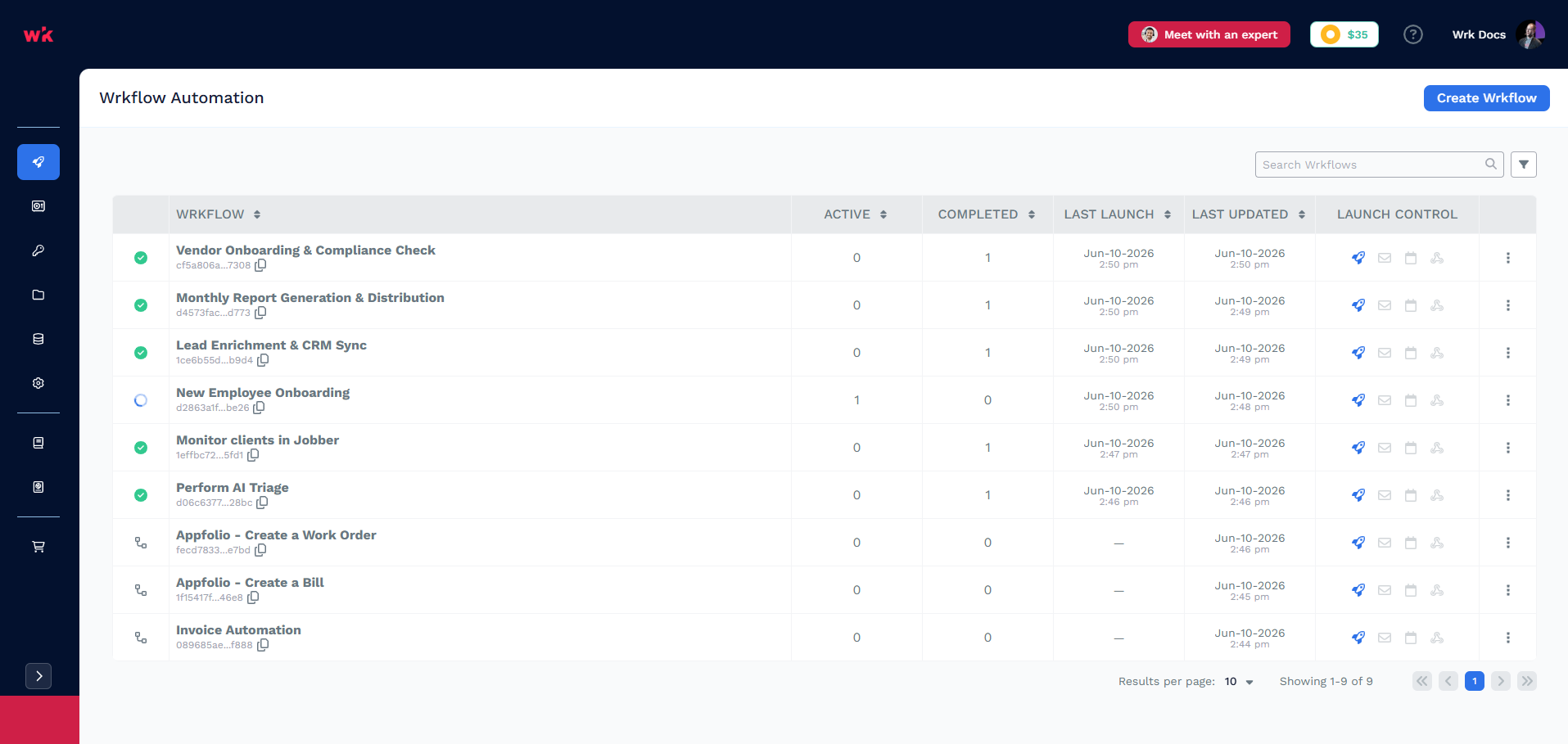
| UI element | What it tells you |
|---|---|
| Wrkflow name | Human-readable identifier; click to open the designer |
| Wrkflow UUID | Stable ID for API launches and the Launch a Wrkflow Action |
| Active | Runs currently in progress for this Wrkflow version |
| Completed | Finished launches since the last version update of this Wrkflow |
| Last launch | Most recent run start time |
| Last updated | When the Wrkflow design was last saved |
| Launch controls | Quick access to launch methods (rocket, envelope, calendar, and more)—see Triggers and Launches |
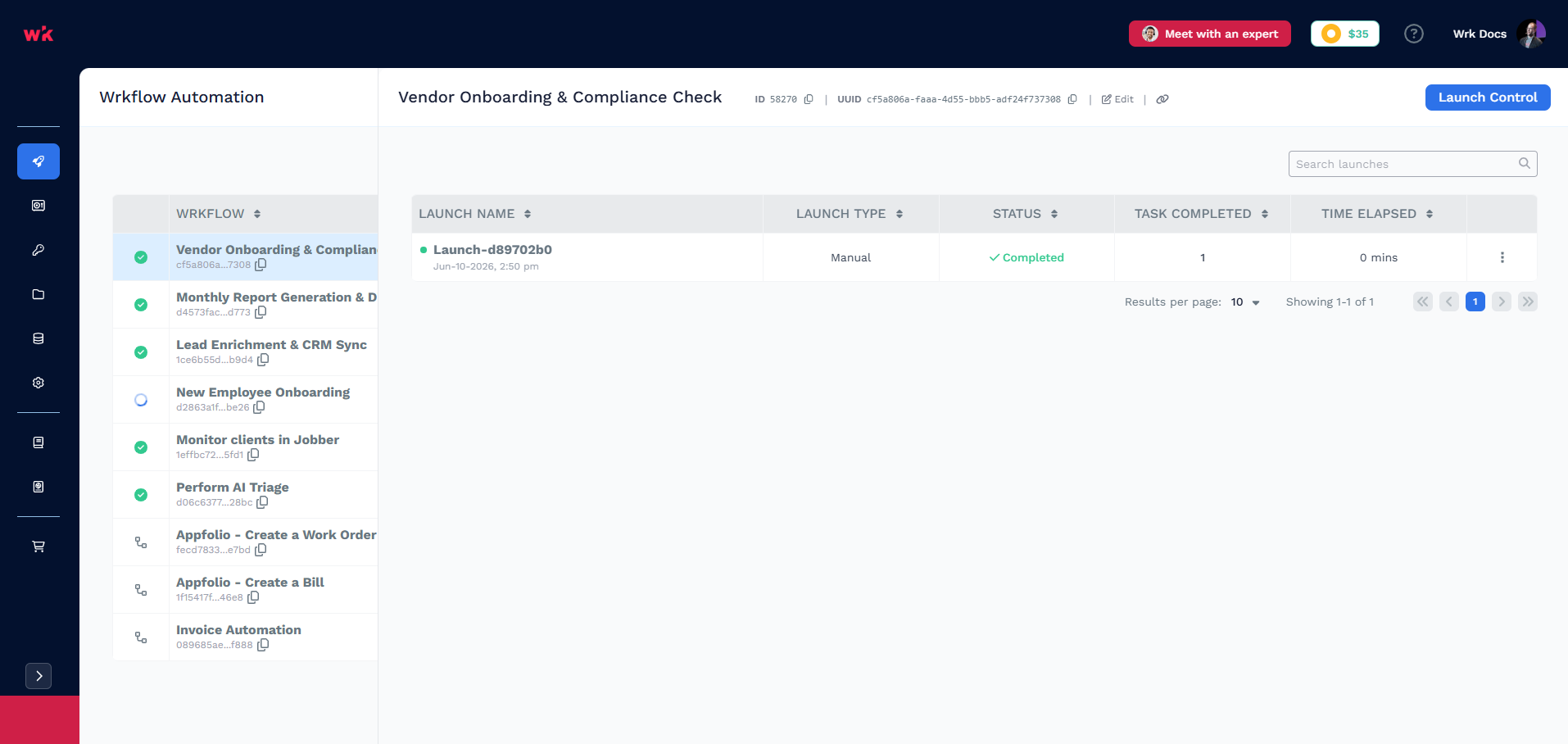
Select a Wrkflow to open its launch panel. From here you can review launch history, see run status, and open Launch Control to start a new run.
Wrkflow properties and metadata
Open Wrkflow Properties from the Wrkflow Automation screen to add documentation your team (and integrations) can use.
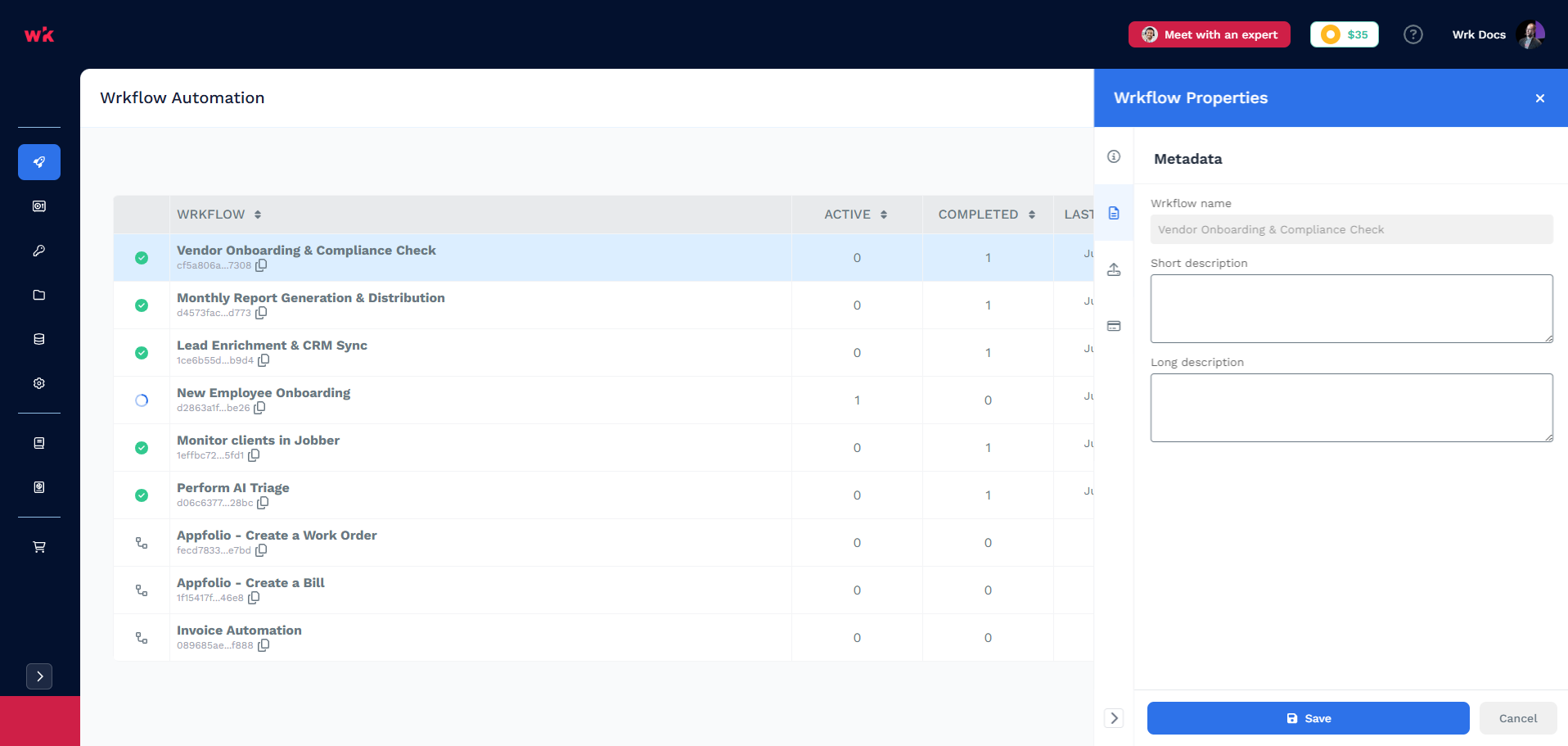
Use Short description and Long description to record what the Wrkflow does, what inputs it expects, and any caveats. This is especially useful when several people maintain the same Wrkflow.
When a Wrkflow is exposed via Wrk's MCP server, these descriptions are surfaced to MCP clients so tools can discover what the Wrkflow does before launching it.