Wrkflows
From Wrkflow Automation, the Wrkflows list is your starting point for finding a Wrkflow, checking Launch counts, and opening its Launch history.
A Wrkflow is the largest building block of automation on Wrk: a designed process that can run on its own. In practice:
- Design vs Launch: the Wrkflow is the blueprint; each Launch is one execution of that design
- Built from Wrk Actions: Wrk Actions connected in sequence, branches, or loops
- Starts with a Trigger: a Trigger defines how the Wrkflow begins and how often it can run
- Deterministic: with the same launch inputs and Wrk Action configuration, the Wrkflow follows the same logical path
For the glossary definition, see Wrkflow in Core concepts.
How a Wrkflow starts
A Wrkflow can be launched through manual launch from the UI, email, schedule, webhook, or API. The trigger you choose defines how data first enters the Wrkflow and how often the process can begin.
See Triggers for each Launch method and when to use it.
The Wrkflow Automation screen
Use Create Wrkflow to start a new design in the Wrkflow Designer, or search and filter the list to find an existing one. Select a Wrkflow name to open Launch history and start a new Launch. To edit an existing design, open a Launch's Launch Console and select Edit in designer.
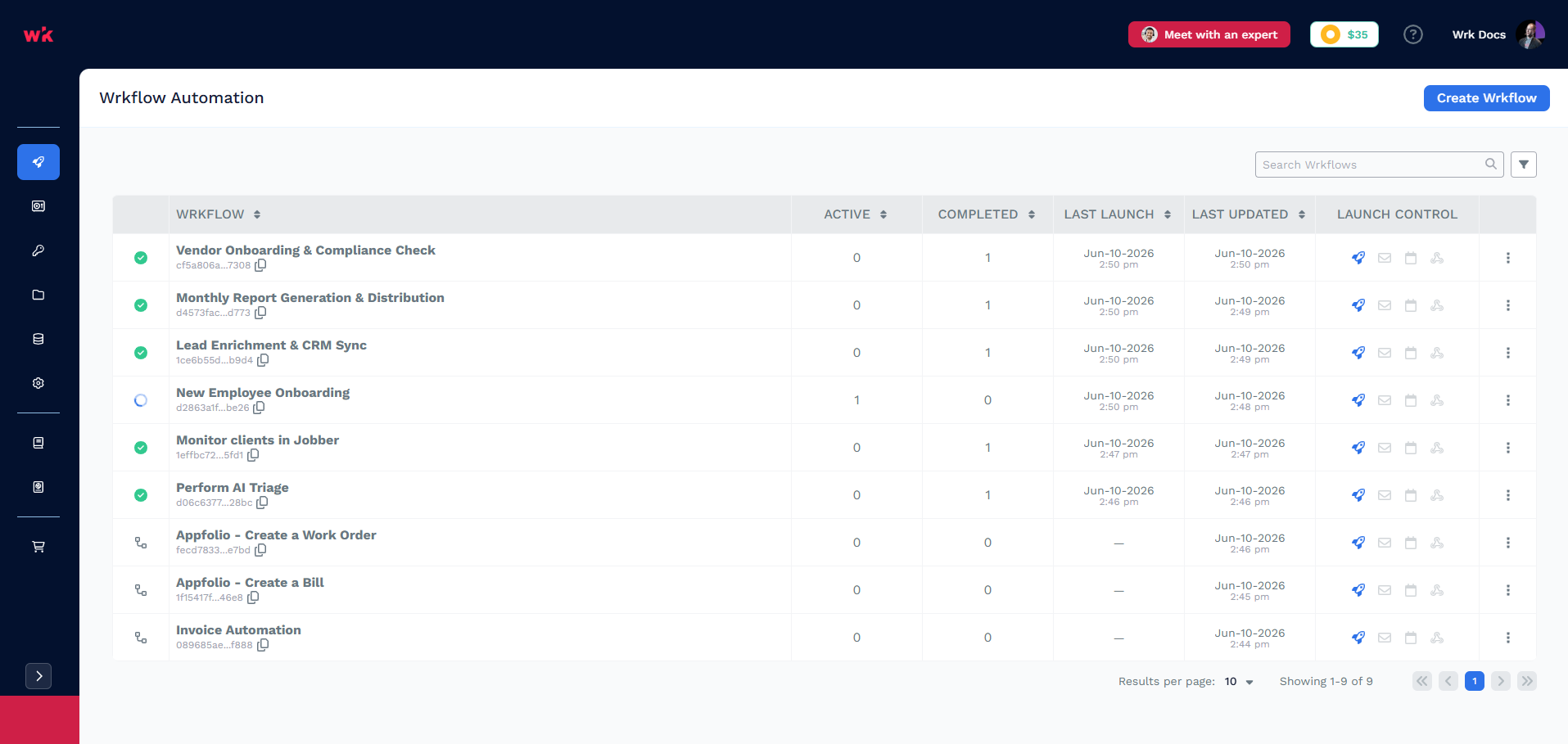
Each row summarizes one Wrkflow design and its recent Launch activity. The table below maps what you see on this screen to what each Wrkflow tracks.
| UI element | What it tells you |
|---|---|
| Wrkflow name | Human-readable identifier; click to open Launch history |
| Wrkflow UUID | Stable ID for API launches and the Launch a Wrkflow Wrk Action |
| Active | Launches currently in progress |
| Completed | Launches that have finished |
| Last launch | Most recent Launch start time |
| Last updated | When the Wrkflow design was last saved |
| Launch controls | Quick access to launch methods (rocket, envelope, calendar, and more) |
| Create Wrkflow | Start a new Wrkflow design from scratch |
Wrkflow name, Active, Completed, Last launch, and Last updated appear as columns in the list. Launch controls sit at the end of each row. For layout, cards, and connections in the Wrkflow Designer, see Wrkflow Designer.
Launch inputs
Wrkflows can define launch inputs, similar to function parameters: values you provide for each Launch. Downstream Wrk Actions reference these values through the Data Library.
Configure launch inputs in Launch Configuration (rocket icon in the Wrkflow Designer). For setup steps, see Launch Configuration in the Wrkflow Designer and Launch configuration in the Glossary.
Wrkflow outputs
A Wrkflow has no built-in output. There is no implicit return value from the Wrkflow itself.
If you need a result, such as a file, API response, Datastore row, or notification, you must create it with a Wrk Action. Use Custom Outputs and Data Library Items to pass Wrk Action outputs through the Launch.
Sub-Wrkflows
One Wrkflow can call another using the Launch a Wrkflow Wrk Action. Nest multiple Wrkflows this way to reuse processes or break large automations into modules.
The parent Wrkflow receives a Wrkflow launch ID from the child Launch. See the Launch a Wrkflow reference for inputs, outputs, and configuration.
Wrkflow properties and metadata
Open Wrkflow Properties from the Wrkflow list to add documentation your team (and integrations) can use.
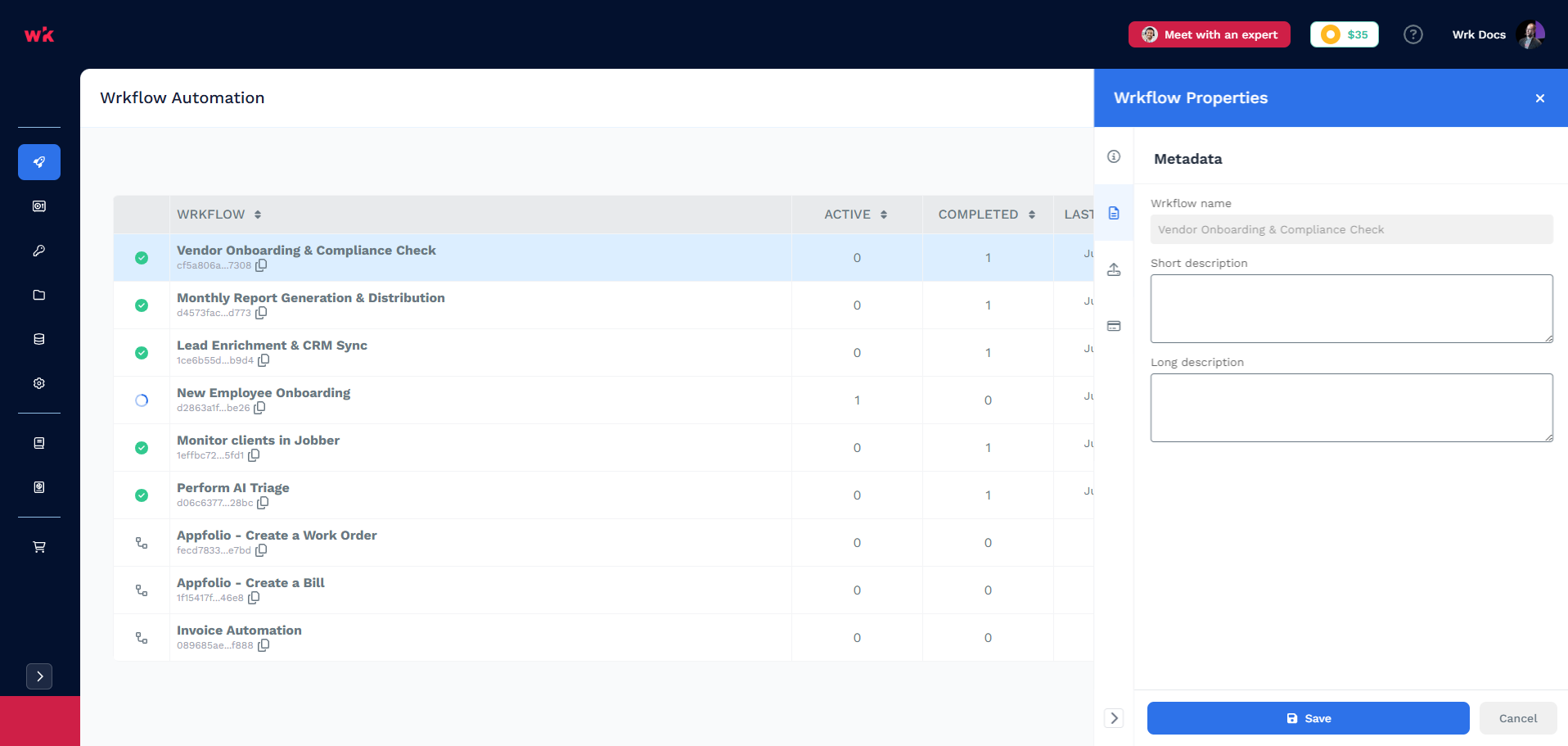
Use Short description and Long description to record what the Wrkflow does, what inputs it expects, and any caveats. This is especially useful when several people maintain the same Wrkflow.
When a Wrkflow is exposed via Wrk's MCP server, these descriptions are surfaced to MCP clients so tools can discover what the Wrkflow does before launching it.