Launch Console Guidelines & Best Practices
Use these guidelines to make Launch Console updates useful when designing a Wrkflow. For an overview, see Launch Console.
The Launch Console has three main purposes:
- Showing launch progress
- Providing Wrkflow results
- Debugging Wrkflows and monitoring errors
Choose the updates that help someone understand what your Wrkflow is doing and what it achieved. The right level of detail depends on the purpose and complexity of the Wrkflow.
Showing Launch Progress
Quality over quantity
A large or complex Wrkflow can generate more updates than someone can comfortably read. If you send an update at every step, useful information can become difficult to find.
There is no one-size-fits-all approach to how much information to send to the Launch Console. Use these general guidelines:
- Send updates at meaningful points, such as capturing key data, modifying a record in another system, or taking a branch that changes the result.
- Wrk automatically reports the start and end of a Launch, so you do not need to add updates just for those events.
- Short Wrkflows usually need fewer updates because they finish quickly.
- Longer Wrkflows benefit from regular updates that show progress over time, especially when they can take hours or days to complete.
Differentiated updates with dynamic content
Make each update specific enough to identify what changed. For example, if a Wrkflow updates hundreds of tasks in Asana, repeating "An update was made in Asana" does not tell someone which task changed.
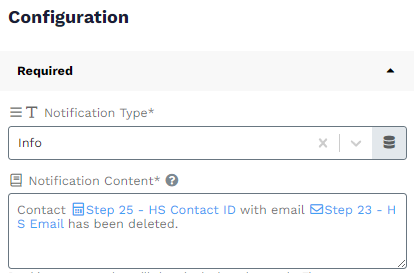
Use Data Library items to include dynamic values in the notification content. For example: "The activity Complete project X was marked as Completed in Asana." The task name and status can change for each update.
The example below uses the same approach to identify a deleted HubSpot contact by its contact ID and email address.
The order of the updates is not relevant to show progress
Updates from separate branches or divided pieces can arrive in a different order. Include enough context in each message for it to make sense on its own. See Launch execution: order of execution and the Divide feature.
Avoid displaying sensitive information
Sending data to the Launch Console makes it visible to people who can view the Launch. Avoid including sensitive data, such as bank details or personally identifiable information (PII).
Tip: Use Replace string in text or Replace text based on regex pattern to mask sensitive values before sending them to the Launch Console.
Consuming Wrkflow Outcome
Keep the outcome for last
For Wrkflows that produce a report, file, or text result, send that result as the final update on its execution path. This makes it easier to find without scrolling through later progress messages.
Single outcome
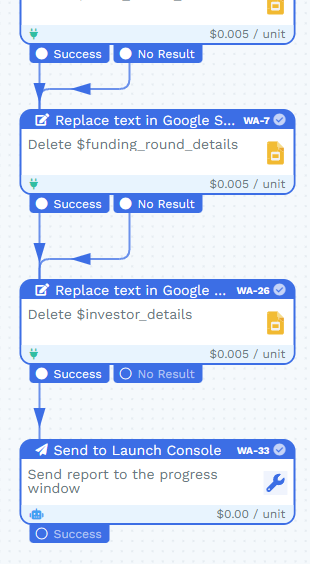
In a linear Wrkflow, use Send to Launch Console as the last Wrk Action. In this example, two Google Slides text replacements finish before the report is sent to the Launch Console:
Multiple outcomes
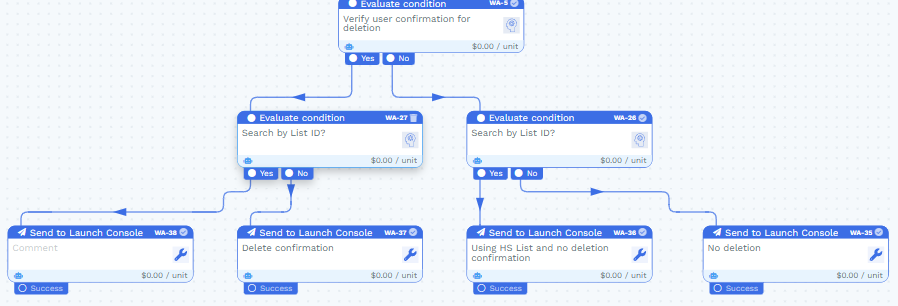
For a Wrkflow with multiple ending paths, consider giving each path its own final update. The conditions below lead to different Launch Console messages depending on the user's confirmation and whether a list ID is available:
Joining outcomes
To combine results from divided pieces into one file, use Export Wrkflow data to file, then send the exported file to the Launch Console as a single result:
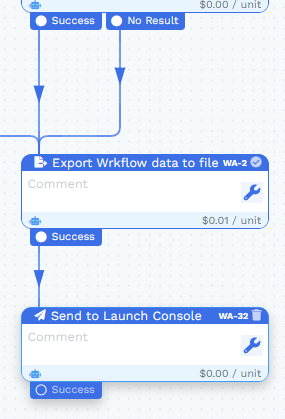
Wrkflows that only move data between systems may not have a separate result to deliver. Progress updates can still help someone understand what was moved.
Debugging Wrkflows and monitoring errors
Execution errors are automatically sent to the Launch Console. You do not need to add Send to Launch Console to report those errors. However, a Wrk Action can return an expected outcome that still means the Wrkflow did not achieve its goal.
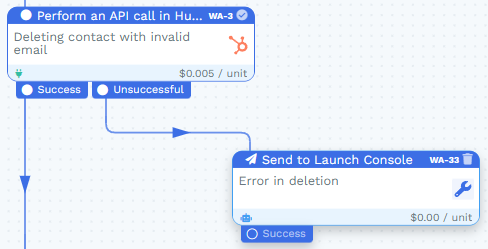
In the example above, the HubSpot API call returns Unsuccessful. This is an expected Wrk Action outcome, so the connected Send to Launch Console Wrk Action adds a message explaining that the contact could not be deleted.
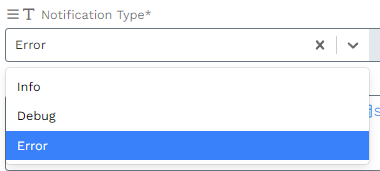
Tip: Set Notification Type in Send to Launch Console to distinguish informational, debug, and error messages. For this unsuccessful deletion, select Error: